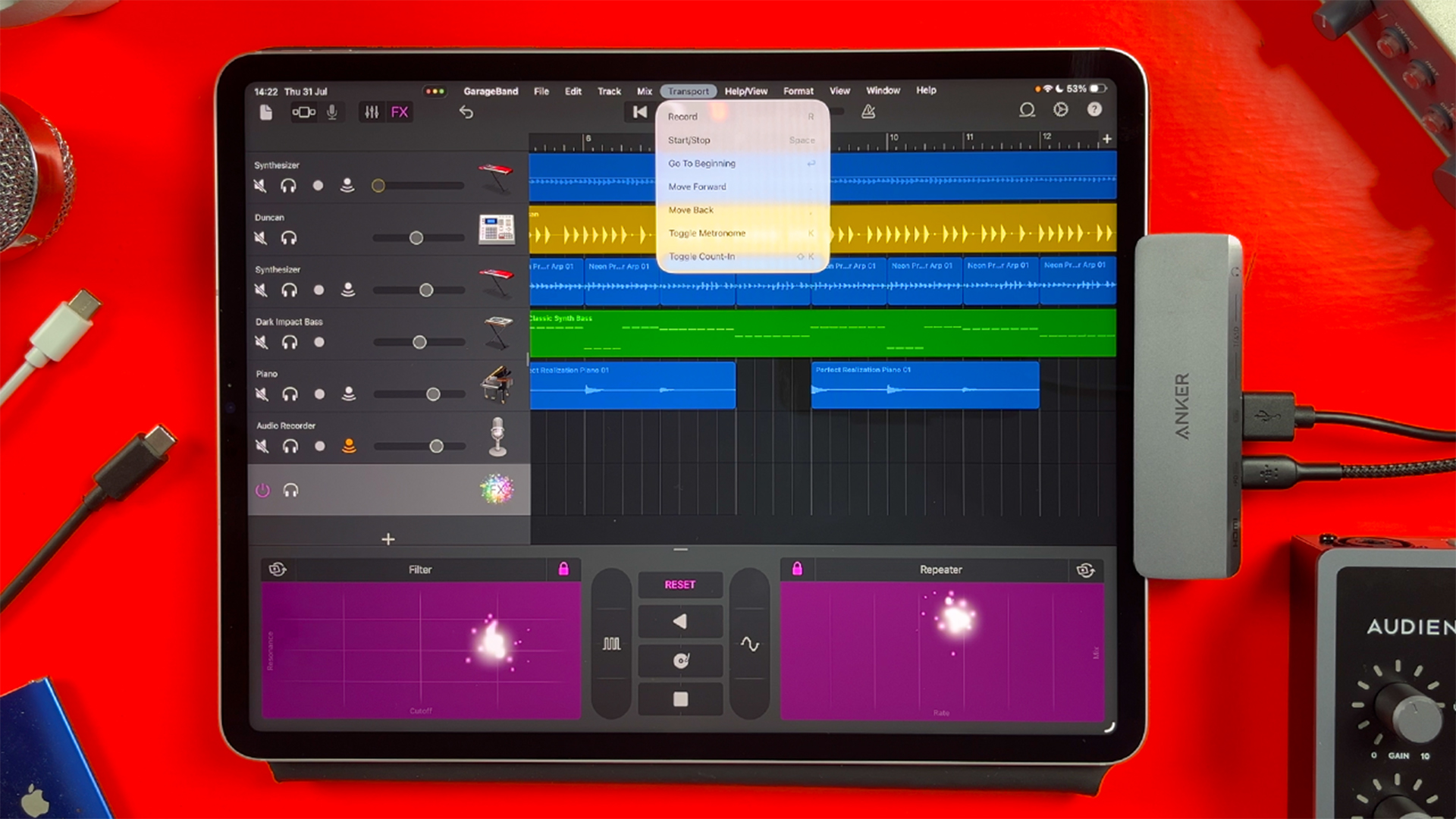
Apple’s latest update to iPadOS is now available for everyone to try. Well, sort of. While the full release of iPadOS 26 isn’t due until later this year, the public beta has just landed, and it brings some significant new features for iPad music makers.
If you’ve been following along on the website, you’ll have seen my early coverage of the developer beta and how iPadOS 26 is quietly reshaping how GarageBand works on iPad. Now that anyone with a compatible iPad can try it, I thought I’d break down what’s new, what’s useful, and what’s still a bit broken.
First, a Quick Disclaimer
Yes, this is a public beta, and yes, it’s much more stable than the early developer builds. But it’s still a beta. That means bugs, crashes, and quirks are part of the deal. If you’re working on a mission-critical project, or just want your iPad to be rock solid, it might be worth holding off until the full release drops in September.
If you’re happy to tinker and explore, though make sure you back up your device first and then dive in.
GarageBand Gets a macOS-Style Menu Bar
One of the headline additions in iPadOS 26 is the new system-wide menu bar, which behaves a lot like the one you’ll find on a Mac. Swipe down from the top of the screen or move your pointer up and you’ll see it appear.
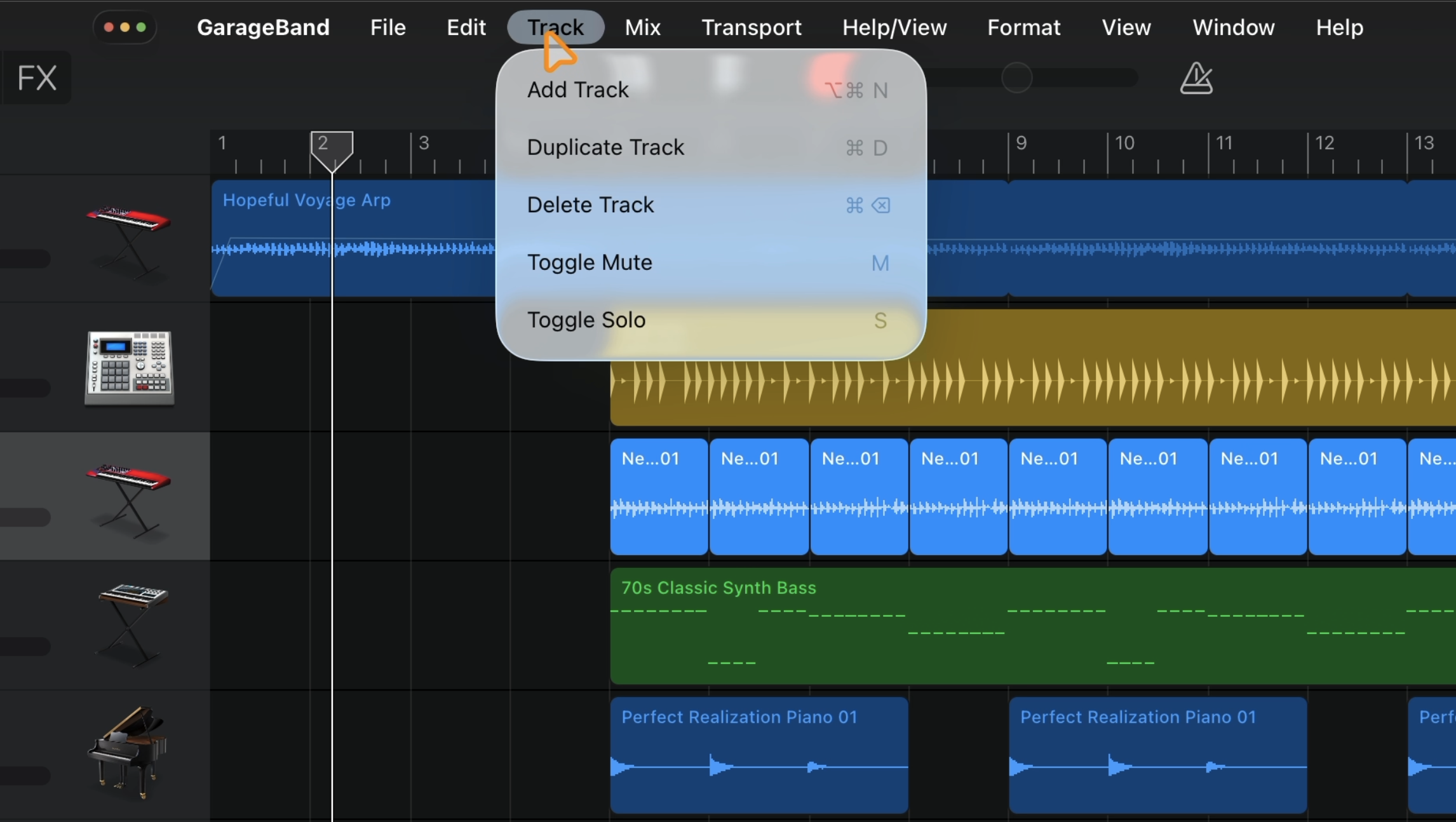
GarageBand now features its own menu options here, giving you quick access to:
- Recently opened projects
- Playback controls
- Editing tools like split, loop, and automation
- Settings (finally available without jumping into the Settings app)
There’s nothing brand new in terms of features, but it does make things more accessible, especially if you’re using a keyboard or mouse with your iPad. Expect more apps to update their menu bar support closer to the full release.
Windowed Apps Are a Game-Changer for Sampling
Easily the most transformative addition for musicians is the new Windowed Apps functionality. This lets you open multiple apps side by side in resizable windows, and it’s brilliant.
Here’s how it works with GarageBand:
- Resize the GarageBand window by dragging the bottom corner.
- Tap the empty screen space to open another app (like Files).
- Navigate to a folder containing samples or MIDI files.
- Use Quick Look to preview samples directly.
- Drag and drop the sample right into GarageBand.
This should massively speed up the process of building sample-based projects… with one small issue.
At the time of writing, dragging and dropping files still causes GarageBand to lock up and force-close the project. This issue was present in the developer beta and, unfortunately, it’s still here in the public beta too. Hopefully, a GarageBand update in September will sort this out.
New System-Level Audio Controls
Another iPadOS 26 feature that GarageBand users will love is the new audio control panel in Control Centre.
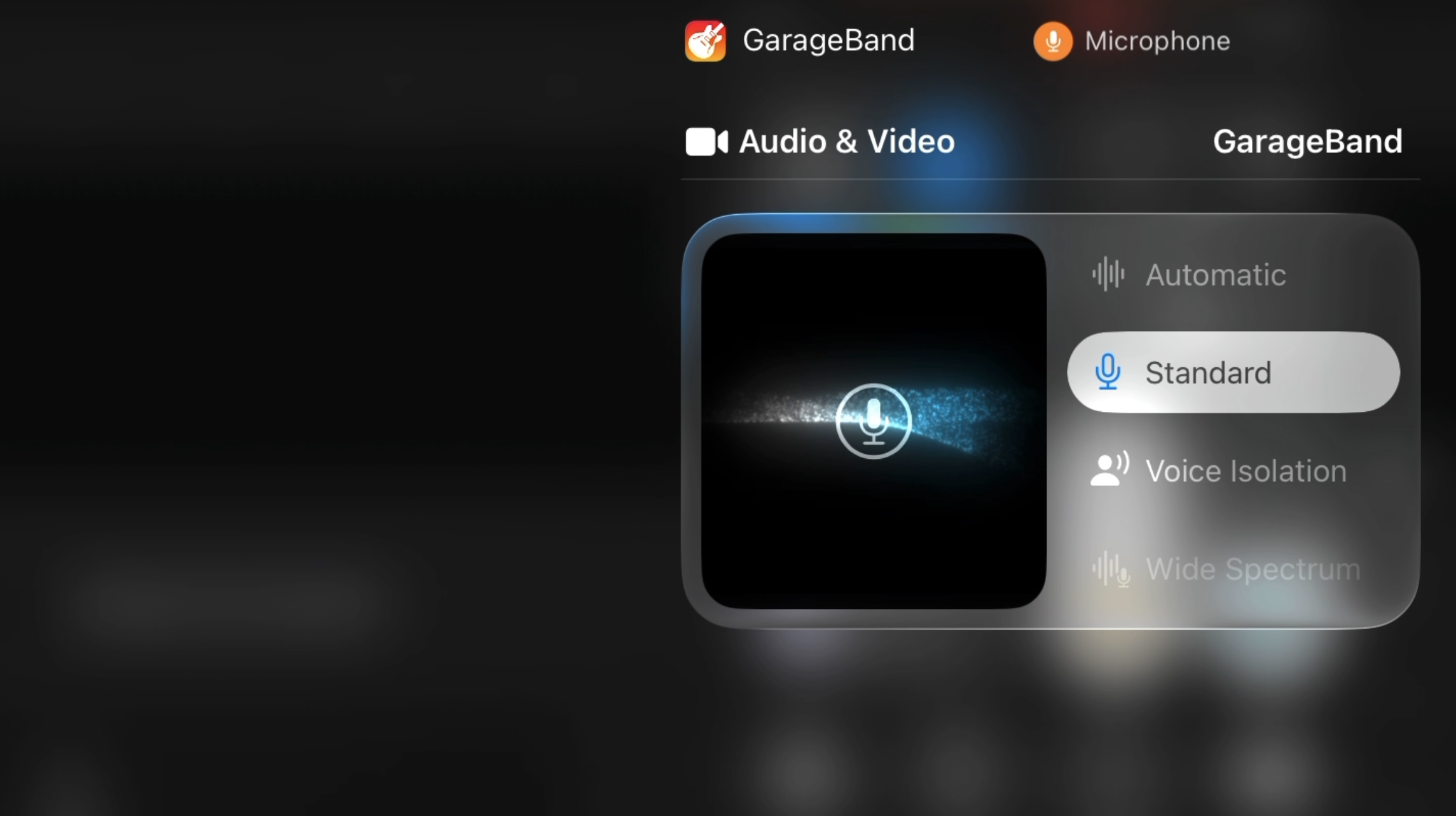
When GarageBand is open, you’ll now see a dedicated microphone input menu. From here, you can:
- Enable global noise cancellation for cleaner recordings
- Switch between internal mics and connected audio interfaces
- View and select from multiple connected interfaces
This menu makes it easier than ever to jump between input sources. If you’ve got, say, a Focusrite and an Audient interface hooked up through a hub, you’ll see both listed and can switch between them on the fly.
Worth noting: you can’t use multiple interfaces simultaneously. You can only route GarageBand’s input to one at a time, but switching is instant and intuitive.
Should You Install iPadOS 26 Public Beta?
If you’re curious about the future of GarageBand on iPad – and want to play around with some very Mac-like features – this is a fun update to try.
You’ll get:
- A smoother workflow with the new menu bar
- More flexible project building thanks to windowed apps
- Better audio input management across all your gear
But you’ll also have to live with the occasional bug, and right now, file drag-and-drop still crashes GarageBand, which is a bit of a shame.
Still, it’s a promising step forward. For iPad musicians, iPadOS 26 might just be the most important update in years.