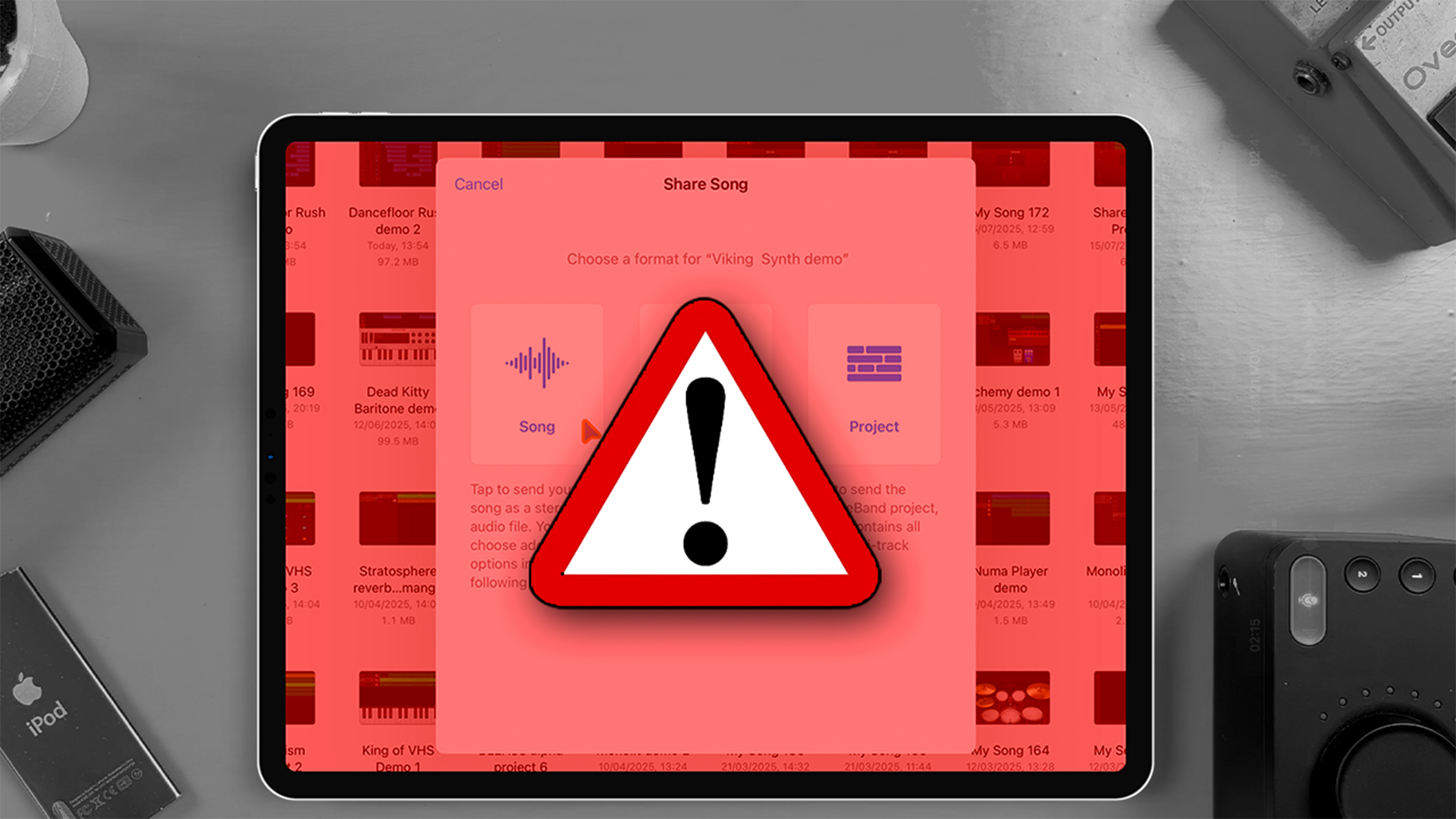
GarageBand for iOS is an incredibly powerful mobile DAW. It lets you record, arrange, mix, and export full tracks using just an iPad or iPhone. But there’s one feature built into the app that can quietly ruin your hard work and there’s no way to turn it off.
We’re talking about auto-normalization.
This invisible process kicks in every time you export a project from GarageBand for iOS. While it might seem helpful on the surface, automatic normalization can create serious issues for anyone looking to master their music or maintain consistent loudness across multiple tracks.
What Is Normalization?
Normalization is a process that adjusts the overall volume of an audio file so that the loudest peak reaches a target level – usually 0 dB. It doesn’t compress or limit your mix, but it does raise or lower the gain of the entire file to hit that ceiling.
For casual users, this can seem like a good thing. A normalized track is loud, polished, and seemingly ready to share. But if you’re exporting mixes to master later, or comparing multiple versions of a song, normalization can cause real problems.
The Big Issue: You Can’t Turn It Off
Unlike GarageBand for Mac or Logic Pro, GarageBand for iOS does not let you disable normalization. There’s no setting or export option to bypass it. Every project you share or export from the app is normalized automatically.
That might be fine for quick demos or casual projects, but it introduces several serious limitations for more advanced workflows.
1. It Interferes With Mastering
If you’re exporting a mix with the intention of mastering it later – either in a different app or by sending it to a mastering engineer – auto-normalization makes that process more difficult. You’re no longer working with a clean, untouched mix. The gain has already been adjusted, which can throw off your mastering chain and lead to inaccurate loudness readings.
You may also struggle to hit platform-specific LUFS targets (like -14 LUFS for Spotify) because the normalized file no longer reflects your original mix dynamics.
2. It Skews Your Mix Decisions
Let’s say you’re working on multiple versions of a track and exporting them to compare. If normalization is changing the output level of each export differently, you won’t be able to compare them fairly. One version might seem “better” just because it’s louder.
That can lead to poor mix decisions, especially if you’re relying on your ears to judge subtle changes in EQ, compression, or balance.
3. It Hides Clipping and Headroom Issues
If your master track in GarageBand is peaking or clipping, the normalization process can mask that by lowering the final gain. You might listen to the exported track and assume everything sounds fine, while the raw mix is actually distorting.
This false sense of security can cause issues down the line, particularly when mastering or uploading to platforms that perform their own loudness adjustments.
Are There Any Workarounds?
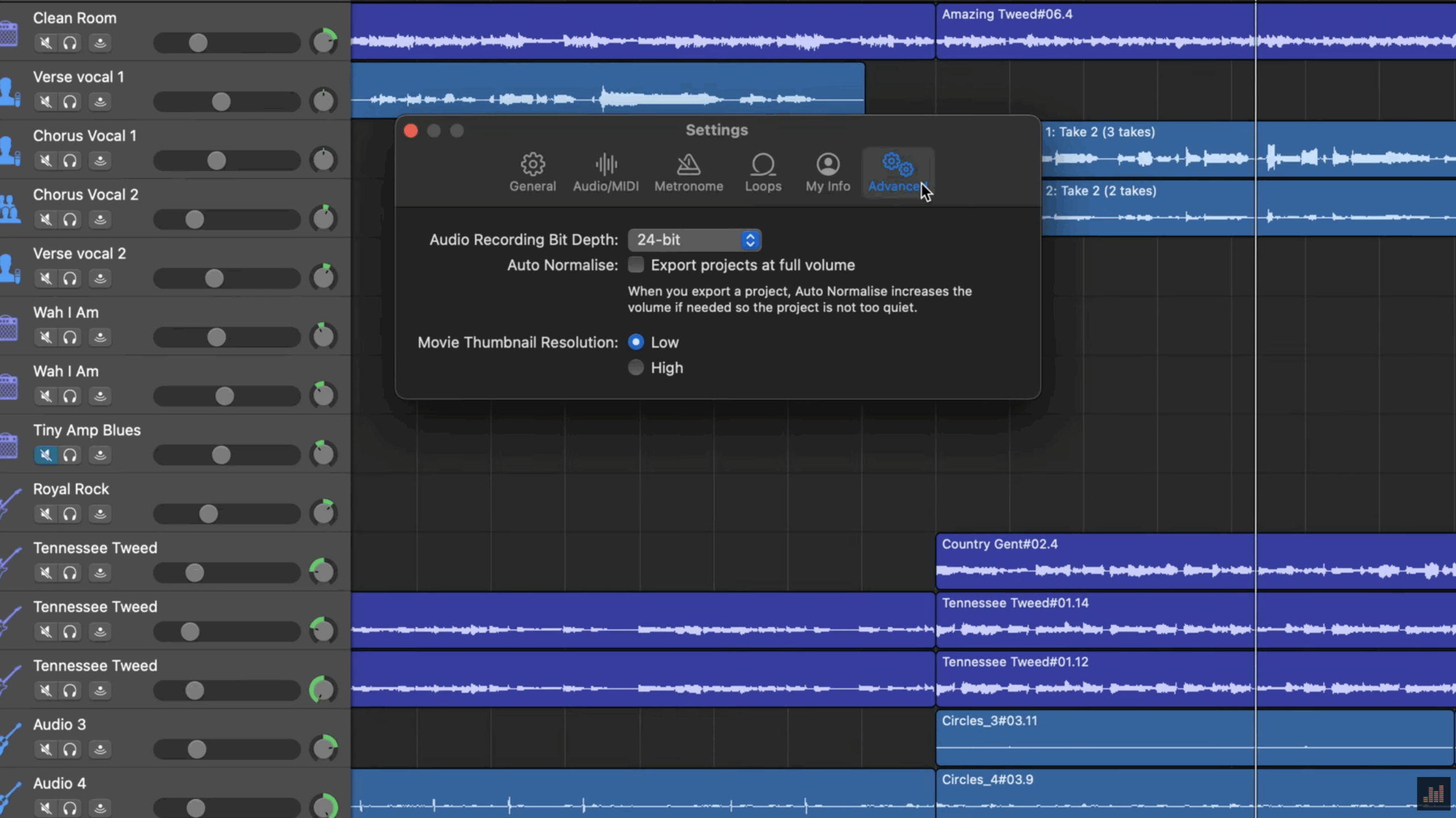
While you can’t turn normalization off on iOS, there are a few ways to work around the problem.
Use GarageBand on Mac for Final Exports
If you can, open your project in GarageBand on macOS. The Mac version includes an “Export to disk” option that lets you disable normalization manually. This gives you full control over the output level of your mix and is the best option if you’re planning to master the track later.
Mix With Plenty of Headroom
When mixing on iOS, make sure your master volume is well below 0 dB, ideally peaking at around -6 dB. This gives the normalization process less gain to apply, helping preserve your intended dynamics and avoiding unexpected volume shifts.
Export Individual Stems
If you’re working on a more serious project, consider exporting individual tracks (stems) rather than a full mix. These can be recombined and mastered in a desktop DAW or more advanced mobile app that gives you full control over gain staging and loudness.
Final Thoughts
GarageBand for iOS is a brilliant tool for making music on the go, but its auto-normalization feature is a hidden limitation that many users overlook. If you’re exporting tracks to master later, or aiming for consistent loudness across your releases, automatic normalization can create more problems than it solves.
Until Apple adds a setting to disable it (something many users have been asking for) it’s worth building your workflow around this limitation. Know that it’s happening, plan accordingly, and use the available workarounds to take back control of your final mix.