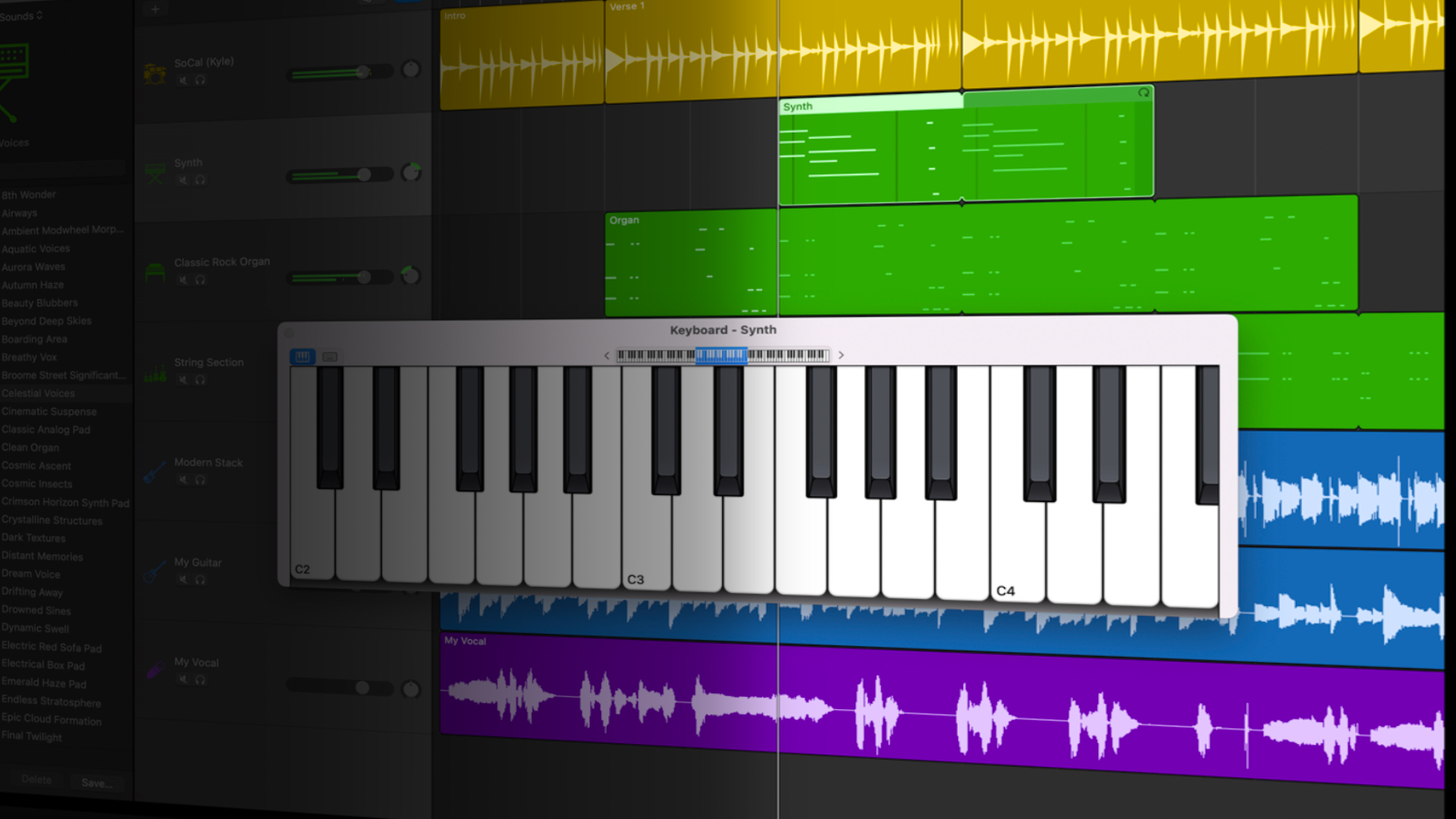
For many Mac users, GarageBand is the first music production app they ever open. It comes free with every Mac, looks surprisingly professional and gives you access to tools that, not that long ago, would have cost hundreds of pounds in studio software and hardware.
There’s just one problem.
When you launch GarageBand for the first time, it can feel overwhelming.
There are track types, instruments, loops, transport controls, libraries, buttons everywhere and Apple doesn’t exactly walk you through what any of it actually does. For complete beginners, GarageBand can quickly go from exciting to intimidating.
The good news is that GarageBand is far easier to use than it first appears.
Once you understand a handful of core concepts, the entire app starts to make sense remarkably quickly. Whether you want to record vocals, make beats, create podcasts or simply experiment with music production on your Mac, GarageBand remains one of the best beginner-friendly DAWs available today.
Here’s everything you need to know to get started with GarageBand for Mac.
What Is GarageBand?
GarageBand is Apple’s free digital audio workstation, or DAW, available for Mac, iPhone and iPad.
A DAW is essentially a piece of software used to record, edit, arrange and mix audio and music projects. GarageBand shares much of its DNA with Apple’s professional music production software, Logic Pro, making it an ideal starting point for beginners who may eventually want to move onto more advanced tools later on.
Despite being free, GarageBand is incredibly capable.
It includes:
- Virtual instruments
- Audio recording
- MIDI support
- Royalty-free Apple Loops
- Built-in drum players
- Guitar amps and effects
- Podcasting tools
- Basic mixing and mastering features
For many musicians and creators, GarageBand is more than enough on its own.
Starting Your First GarageBand Project
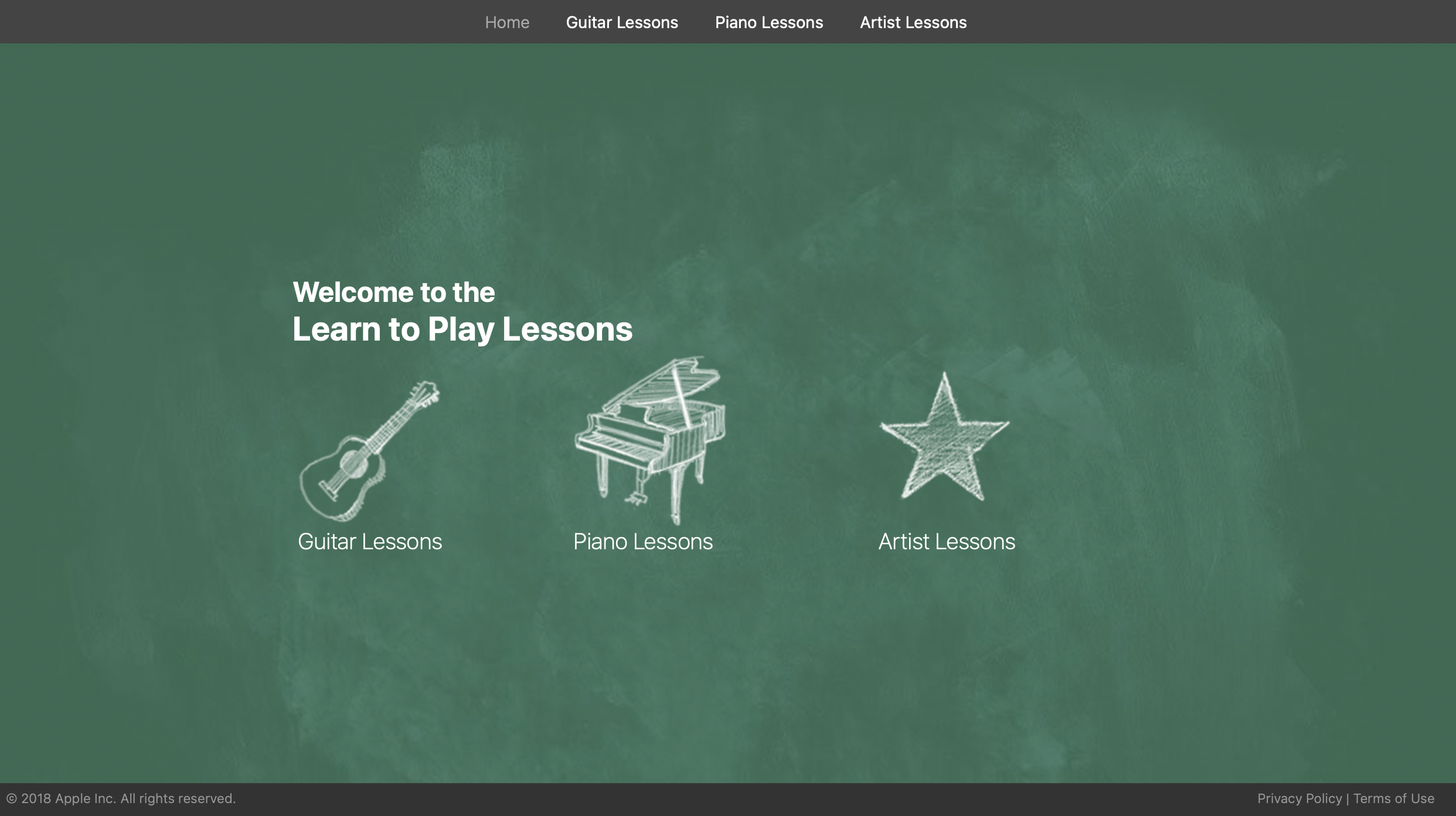
When you first open GarageBand on Mac, you’ll be presented with the project browser.
Here, you’ll see:
- Recent projects
- Downloadable lessons
- Project templates
- The option to create a new project
If you’re completely new to GarageBand, the best place to start is with an Empty Project.
While the templates can be useful later on, opening a completely blank project is the easiest way to understand how GarageBand actually works.
Once you select Empty Project and click Choose, GarageBand will ask you to create your first track.
This is where many beginners hit their first point of confusion.
Understanding GarageBand Track Types
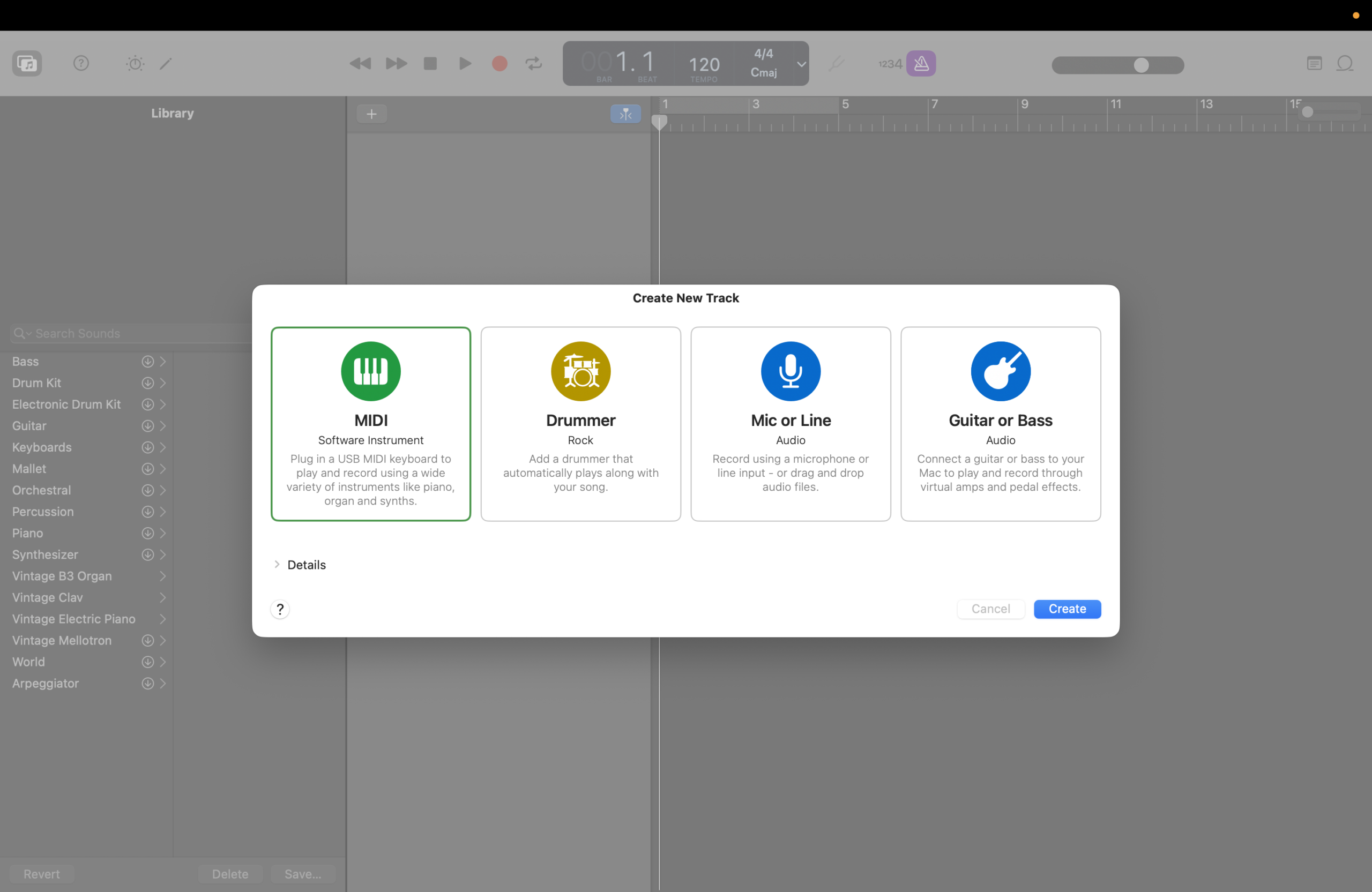
GarageBand projects are built around tracks.
Each track has a different purpose depending on what you want to create or record.
Software Instrument Tracks
If you want to use GarageBand’s built-in virtual instruments such as:
- Pianos
- Synths
- Basses
- Strings
- Electronic drums
you’ll want to create a Software Instrument track.
These tracks work with MIDI data rather than recorded audio. You can play them using:
- A MIDI keyboard
- GarageBand’s Musical Typing feature
- Or by dragging MIDI loops into your project
For most beginners, Software Instrument tracks are the easiest and most approachable place to start.
Audio Tracks
Audio tracks are used to record real-world audio into GarageBand.
This includes:
- Vocals
- Acoustic guitar
- Electric guitar
- Podcasts
- External instruments
- Microphones connected via USB or audio interface
If you plan to record your voice or an instrument directly into GarageBand, choose an Audio track.
Drummer Tracks
GarageBand’s Drummer feature is one of its most underrated beginner tools.
Instead of manually programming drums, Drummer tracks automatically generate realistic drum performances based on a few simple controls.
You can adjust:
- Genre
- Complexity
- Loudness
- Groove feel
- Drum kit selection
For beginners making music on Mac, Drummer can make creating backing tracks dramatically easier.
The GarageBand Library Explained
On the left-hand side of GarageBand’s interface sits the Library.
The Library changes depending on which type of track you currently have selected and acts as GarageBand’s central hub for sounds and presets.
For example:
- Software Instrument tracks display instrument sounds
- Audio tracks display vocal and guitar presets
- Drummer tracks display available drummers and kits
This is where GarageBand becomes particularly beginner friendly.
You don’t need to understand synthesizers, plugins or audio engineering to get started. You can simply browse through presets until you find sounds you like.
GarageBand includes a surprisingly large range of sounds.
For new users, experimenting with presets is often the fastest way to start building ideas.
How to Use Apple Loops in GarageBand
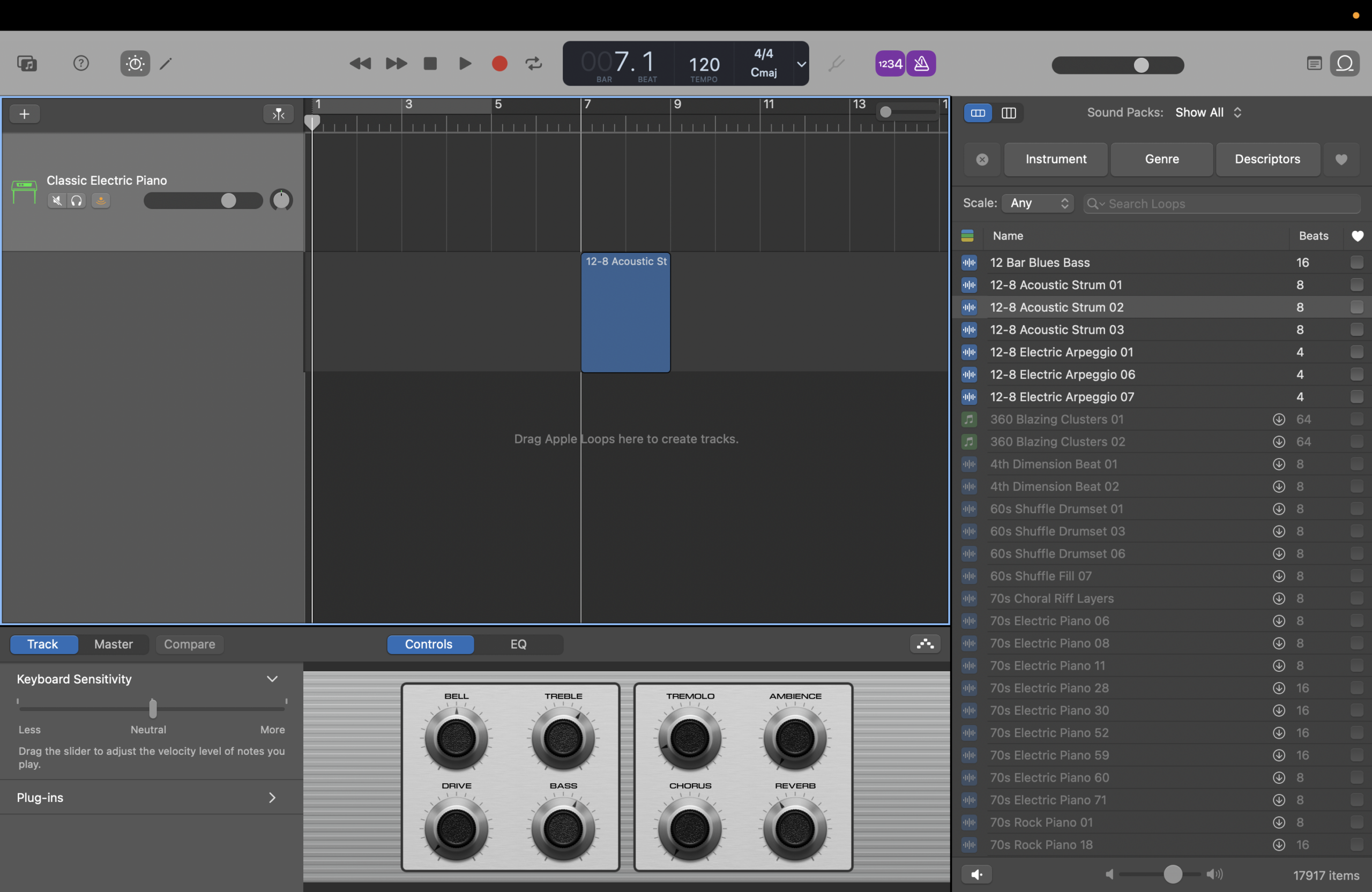
One of GarageBand’s most powerful features is Apple Loops.
Apple Loops are royalty-free audio and MIDI samples included with GarageBand that you can drag directly into your projects.
They allow complete beginners to start making music immediately, even without playing an instrument.
To open the Loop Browser in GarageBand:
- Click the loop icon in the top right corner
- Browse by genre, instrument or mood
- Click a loop to preview it
- Drag it into your project
GarageBand automatically creates the correct type of track for the loop you choose.
For example:
- Drum loops create drummer or audio tracks
- MIDI loops create software instrument tracks
- Instrument loops load appropriate sounds automatically
Within minutes, you can begin layering:
- Drum beats
- Basslines
- Chords
- Melodies
- Synth textures
into complete arrangements.
For many beginners, Apple Loops are the moment GarageBand truly starts to click.
Downloading GarageBand’s Full Sound Library
When you first install GarageBand on Mac, Apple only includes a portion of the app’s full sound library.
This means you may notice greyed out instruments, missing loops and sounds with download arrows beside them.
To unlock GarageBand’s complete sound library:
- Open GarageBand
- Click GarageBand in the menu bar
- Navigate to Sound Library
- Select Download All Available Sounds
Be warned though: it’s a large download.
Depending on your internet connection, downloading the entire GarageBand sound library can take quite a while. Still, it’s well worth doing, especially if you plan to use GarageBand regularly for music production.
Is GarageBand Good for Beginners?
Absolutely.
GarageBand remains one of the best beginner DAWs available, particularly for Mac users.
Its biggest strengths are:
- Simplicity
- Accessibility
- Built-in sounds
- Apple Loops integration
- Clean interface
- Strong balance between ease of use and capability
Unlike many professional DAWs, GarageBand doesn’t overwhelm beginners with advanced routing, mixing or technical configuration straight away.
Instead, it focuses on getting users creating music quickly.
And importantly, the skills you learn in GarageBand translate directly to more advanced software later on, particularly Logic Pro.
GarageBand can look intimidating when you first open it, but underneath the surface it’s actually an incredibly approachable music production app.
Once you understand:
- Track types
- The Library
- Apple Loops
- Basic recording
- Project structure
the app starts to feel far less complicated.
The best way to learn GarageBand is simply to start experimenting.
Drag in some loops.
Try different sounds.
Record ideas.
Build small projects.
You do not need to master every feature immediately.
Most GarageBand users only use a fraction of what the app is capable of day to day, and that’s perfectly fine.
The important thing is getting comfortable creating music.